

How to Set Up and Use Your Medium Keyboard (KG87)
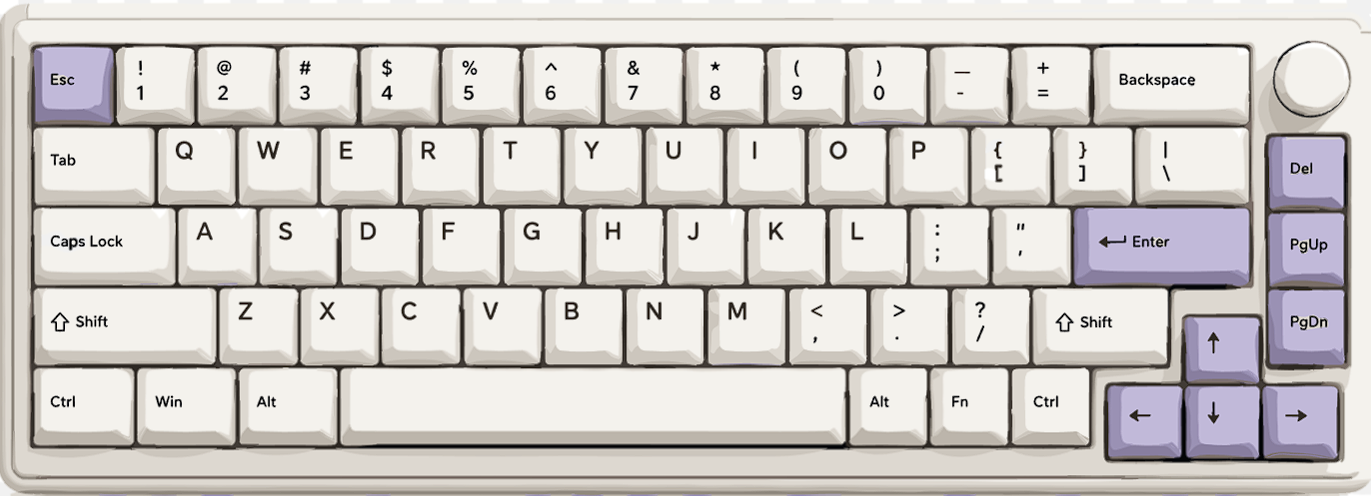
Just got your shopgalactica Medium Keyboard? 🎉 This guide will help you get set up, connect to your devices, change the lighting, customise the LCD screen and use VIA for advanced key remapping.
This guide is for shopgalactica’s Medium Keyboard, built on the KG87 platform.
Important: When pairing with Bluetooth, the keyboard may appear as ZUOYA GMK87-1, ZUOYA GMK87-2 or ZUOYA GMK87-3. This is normal.
What can this keyboard do?
Your Medium Keyboard includes:
- USB wired mode
- Bluetooth connection for up to three devices
- 2.4 GHz wireless connection
- RGB keyboard lighting
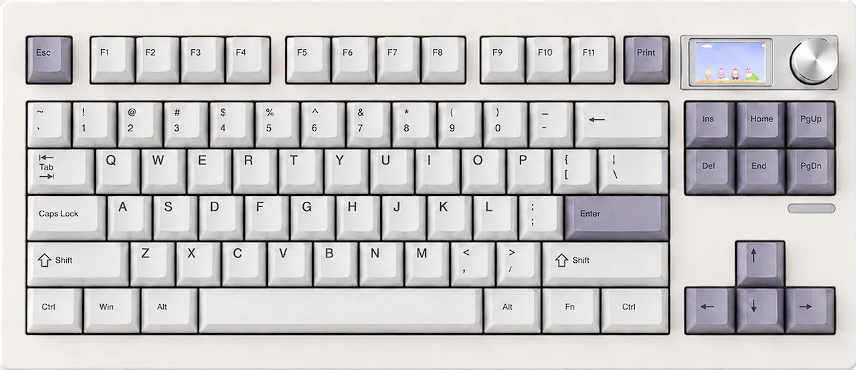
- A TFT-LCD screen
- A volume knob
- VIA key remapping and customisation

Before you start 📌
Make sure you have:
- Your keyboard
- A USB cable
- The 2.4 GHz receiver, if you want to use wireless mode
- A Windows PC, if you want to upload custom images or animations to the LCD screen
Choose how you want to connect
Your keyboard can connect in three ways: USB, Bluetooth or 2.4 GHz wireless.
USB / Wired Mode 💻
This is the quickest and simplest option.
- Move the keyboard’s connection switch to USB / Wired Mode.
- Connect the keyboard to your computer using the USB cable.
- The LCD screen should turn on when the keyboard is connected.
Bluetooth Mode 🛜
The keyboard can save up to three Bluetooth devices. For example, you could connect your laptop, tablet and phone.
Pair a new Bluetooth device
- Move the connection switch to Bluetooth Mode.
- Choose a Bluetooth slot:
| Device | Shortcut |
|---|---|
| Device 1 | Hold Fn + Q for 3–5 seconds |
| Device 2 | Hold Fn + W for 3–5 seconds |
| Device 3 | Hold Fn + E for 3–5 seconds |
- The BT1, BT2 or BT3 symbol should begin flashing on the LCD screen.
- Open Bluetooth settings on your device.
- Select the matching keyboard name:
ZUOYA GMK87-1ZUOYA GMK87-2ZUOYA GMK87-3
- Once connected, the Bluetooth symbol will stop flashing.
Switch between saved devices
| Device | Shortcut |
|---|---|
| Device 1 | Fn + Q |
| Device 2 | Fn + W |
| Device 3 | Fn + E |
The keyboard should remember the last Bluetooth device it used and reconnect when switched on again.
2.4 GHz Wireless Mode
Use the included 2.4 GHz receiver for a wireless connection to your computer or compatible device.
- Move the connection switch to 2.4 GHz Mode.
- The 2.4G symbol on the LCD screen should start flashing.
- Plug the 2.4 GHz receiver into your device.
- Once connected, the 2.4G symbol should stop flashing.
Re-pairing the receiver
Your receiver should already be paired. Only use these steps if it stops connecting.
- Hold
Fn + R. - The 2.4G symbol should flash quickly.
- Plug the receiver into a USB port.
- Wait for the symbol to stop flashing.
Use the volume knob 🔊
The knob in the upper-right corner controls your volume.
- Turn it clockwise to increase volume.
- Turn it anti-clockwise to decrease volume.
- Press it down to mute or unmute.
Change your RGB lighting ⚡
Hold Fn and press the following keys:
| Shortcut | What it does |
|---|---|
Fn + ↑ |
Increase brightness |
Fn + ↓ |
Decrease brightness |
Fn + ← |
Change RGB colour |
Fn + → |
Change RGB colour in the other direction |
Fn + | |
Change lighting effect |
Fn + - |
Slow down lighting effect |
Fn + = |
Speed up lighting effect |
Fn + [ |
Make colours more vivid |
Fn + ] |
Make colours less vivid |
Fn + Backspace |
Turn keyboard lighting on or off |
Fn + Page Up |
Change strip-light effect |
Fn + Page Down |
Change strip-light colour |
Hold Fn + Space for 3 seconds |
Restore keyboard settings |
The
\|key is the backslash/pipe key near Enter.
Use media shortcuts 😶🌫️
| Shortcut | What it does |
|---|---|
Fn + F1 |
Open music player |
Fn + F2 |
Volume down |
Fn + F3 |
Volume up |
Fn + F4 |
Mute |
Fn + F5 |
Stop media |
Fn + F6 |
Previous track |
Fn + F7 |
Play or pause |
Fn + F8 |
Next track |
Fn + F9 |
Open email |
Fn + F10 |
Open web browser |
Fn + F11 |
Open calculator |
Fn + F12 |
Search |
Fn + Windows |
Lock or unlock the Windows key |
Fn + Enter |
Change LCD profile |
Fn + X |
Turn the LCD screen on or off |
Some shortcuts may work differently depending on the device or app you are using.
Customise the LCD screen 😎
You can upload still images and animations to the keyboard’s LCD screen.
The keyboard supports up to two custom display sets. Press Fn + Enter to move between LCD profiles.
What you need
- A Windows PC
- The keyboard connected in USB / Wired Mode
- The GMK87 Image Custom Tool
- An image or animation you want to upload
Uploading your own visual
- Connect the keyboard in USB / Wired Mode.
- Download and install the GMK87 Image Custom Tool.
- Open the software.
- Select your image or animation.
- Upload it to the keyboard.
- Keep the keyboard connected until the upload is complete.
Mac users can still use the keyboard normally, but a Windows PC is recommended for uploading custom LCD visuals.
Download GMK87 Image Custom Tool
Please refer to our Image Custom Tool blog for a step-by-step breakdown.
Change keys with VIA
VIA is optional software that lets you customise what your keys do.
With VIA, you can:
- Change key functions
- Create macros
- Set up extra layers
- Adjust supported RGB settings
Before using VIA
VIA needs a small setup file called a JSON file. Use the file that matches how your keyboard is connected.
| Connection type | File to use |
|---|---|
| USB / Wired Mode | Wired V1 or Wired V2 JSON |
| 2.4 GHz receiver | 2.4G V1 or 2.4G V2 JSON |
Do not use a file for the GMK67, GMK104 or another GMK87 version.
Not sure whether your keyboard needs V1 or V2? Contact shopgalactica before downloading a file.
Download GMK87 VIA files
Open VIA Configurator
Do not use a JSON file from a different keyboard, or from a different GMK87 revision, as the keyboard may not be recognised correctly.
How to use VIA
- Connect the keyboard using the same connection type as your JSON file.
- Download the matching GMK87 JSON file.
- Open the VIA Configurator.
- Load the JSON file.
- Click the key you want to change.
- Choose the new function for that key.
- Use the Key Tester section to check that the keyboard is being detected.
Your changes are saved to the keyboard, so they should remain after it is unplugged.
What are layers?
Layers are extra keyboard layouts.
- Layer 0 is the normal layout.
- Layers 1, 2 and 3 are extra layouts you can set up in VIA.
Most people will only need the normal layout. Layers are useful if you want one key to do different things in different situations.
Mac mode
When the keyboard is in Mac mode:
| Keyboard key | Works as |
|---|---|
| Left Alt | Left Option |
| Left Windows | Left Command |
| Right Alt | Right Option |
Sleep mode and charging 💤
To save battery:
- The LCD screen turns off after around 5 minutes without use in Bluetooth or 2.4 GHz mode.
- Press any key to wake the screen.
- In Bluetooth mode, the keyboard enters deep sleep after around 30 minutes without use.
- Press any key to wake it and reconnect.
When the battery is low, the battery symbol on the LCD screen turns red. A charging symbol appears while the keyboard is charging.
Common problems and quick fixes 🔨
Bluetooth is not connecting
- Make sure the keyboard is in Bluetooth Mode.
- Hold
Fn + Q,Fn + WorFn + Efor 3–5 seconds. - Wait for the Bluetooth symbol to flash.
- Remove the old keyboard entry from your device’s Bluetooth settings.
- Pair the keyboard again.
The 2.4 GHz receiver is not connecting
- Make sure the keyboard is in 2.4 GHz Mode.
- Hold
Fn + R. - Wait for the 2.4G symbol to flash.
- Plug the receiver into a USB port.
- Wait for the symbol to stop flashing.
VIA cannot find the keyboard
- Check that the keyboard is connected properly.
- Make sure you are using the correct connection mode.
- Use a Wired JSON file for USB mode.
- Use a 2.4G JSON file for 2.4 GHz mode.
- Do not use a file for another keyboard model.
- Close and reopen VIA after loading the correct JSON file.
The LCD image is not updating
- Use the GMK87 Image Custom Tool.
- Use a Windows PC.
- Connect the keyboard in USB / Wired Mode.
- Keep the keyboard connected until the upload finishes.
- Press
Fn + Enterto check the other LCD profile.
The keyboard lights are off
- Press
Fn + Backspaceto turn the lights back on. - Press
Fn + \|to change the effect. - Hold
Fn + Spacefor 3 seconds to reset keyboard settings.
🤔Stuck or need help?
Don’t worry - our team’s got your back: 😁
Join our Discord for real-time help: https://discord.gg/GrcrexEXgB
Or shoot us an email: support@shopgalactica.com


Leave a comment
All comments are moderated before being published.
This site is protected by hCaptcha and the hCaptcha Privacy Policy and Terms of Service apply.