

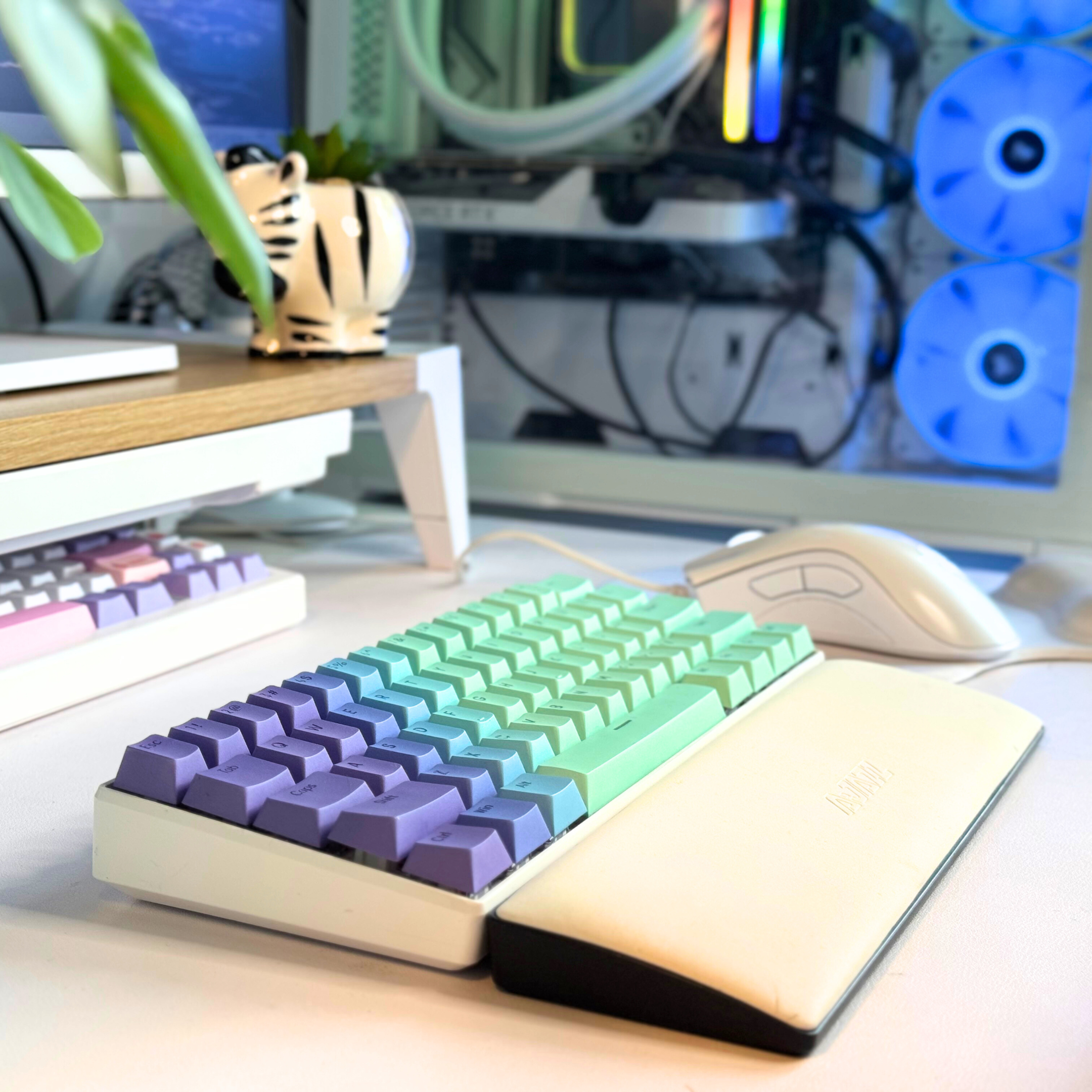
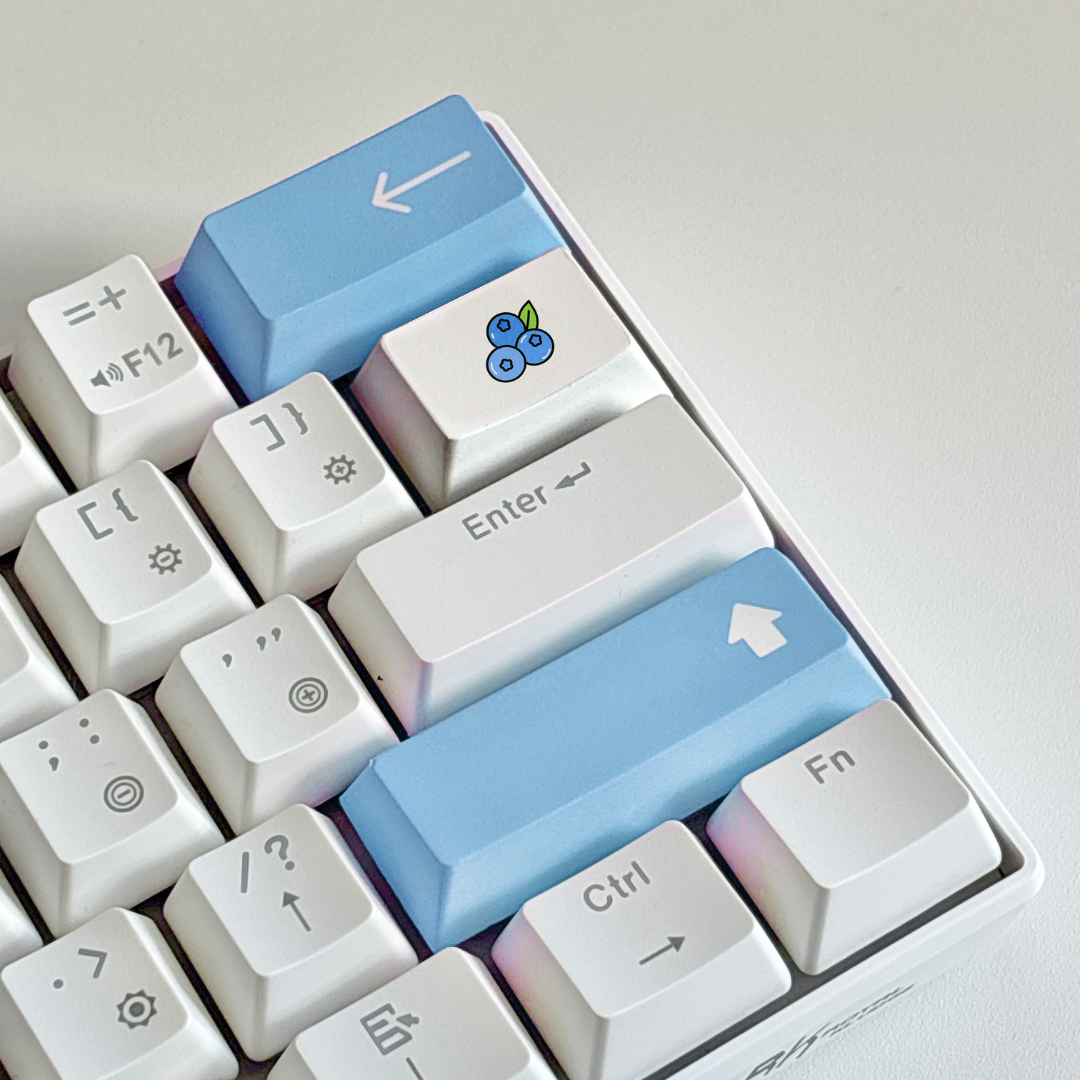
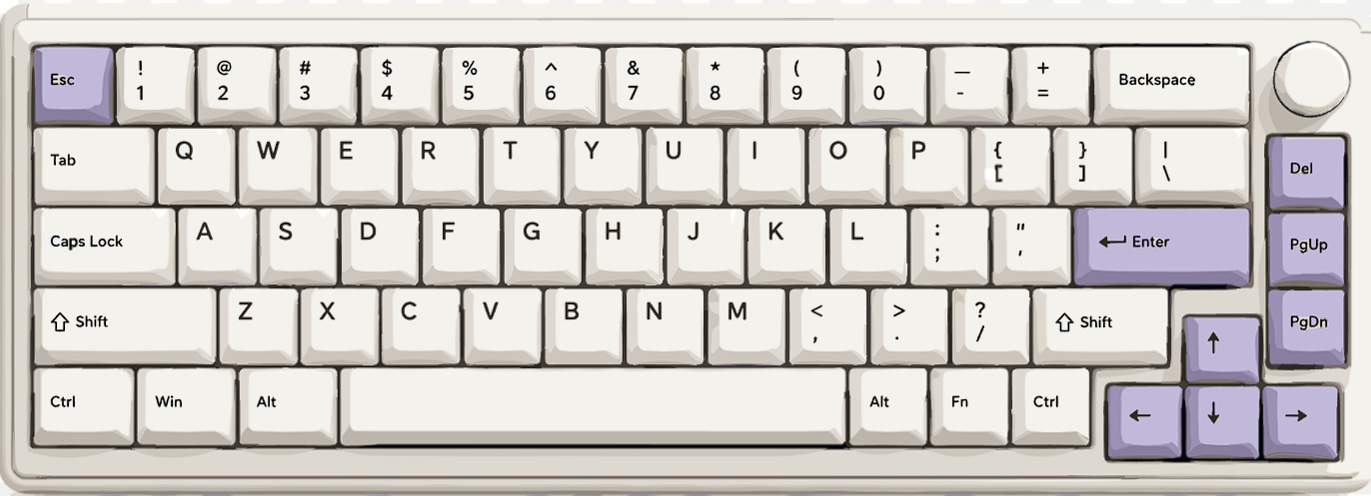
Welcome to your shopgalactica Small Keyboard. Just received it?🎉
This guide will help you connect your keyboard, use Bluetooth and 2.4 GHz wireless mode, adjust RGB lighting, use the volume knob and understand the main shortcut keys.
Your Small Keyboard is built on the GMK67 platform.
Important: When connecting by Bluetooth, your keyboard may appear as BT Keyboard. This is normal.
What can this keyboard do?
Your Small Keyboard includes:
- USB wired mode
- Bluetooth connection for up to three devices
- 2.4 GHz wireless connection
- RGB backlighting
- A volume knob
- Windows and Mac modes
- Gaming and office lighting presets

Before you start 📌
Make sure you have:
- Your keyboard
- USB cable
- 2.4 GHz wireless receiver
- A device with USB or Bluetooth
The switches on the back of the keyboard let you choose:
- Bluetooth Mode
- Wired Mode
- 2.4 GHz Mode
- Windows Mode
- Mac Mode
Connect your keyboard
USB / Wired Mode 💻
This is the easiest way to get started.
- Move the connection switch to the middle Wired Mode position.
- Connect the keyboard to your computer using the USB cable.
- The keyboard lights should turn on when it is connected.
Bluetooth Mode 🛜
The keyboard can remember up to three Bluetooth devices.
Pair a new Bluetooth device
- Move the connection switch to Bluetooth Mode.
- Choose a Bluetooth slot:
| Device | Shortcut |
|---|---|
| Device 1 | Hold Fn + Q for 3–5 seconds |
| Device 2 | Hold Fn + W for 3–5 seconds |
| Device 3 | Hold Fn + E for 3–5 seconds |
- The device indicator light should flash quickly.
- Open Bluetooth settings on your phone, tablet or computer.
- Select BT Keyboard.
- Once connected, the indicator light should stop flashing.
Switch between saved Bluetooth devices
| Device | Shortcut |
|---|---|
| Device 1 | Fn + Q |
| Device 2 | Fn + W |
| Device 3 | Fn + E |
2.4 GHz Wireless Mode
Use the included receiver for a wireless connection to your computer.
- Move the connection switch to 2.4 GHz Mode.
- Plug the 2.4 GHz receiver into your device.
- The device indicator should show a steady white light when connected.
Re-pairing the 2.4 GHz receiver
Only use these steps if the receiver stops connecting.
- Move the keyboard to 2.4 GHz Mode.
- Hold
Fn + R. - The device indicator should flash white quickly.
- Plug the receiver into a USB port.
- When the light becomes steady white, pairing is complete.
Use the volume knob 🔊
The knob in the top-right corner controls volume.
- Turn clockwise to increase volume.
- Turn anti-clockwise to decrease volume.
- Press the knob once to mute or unmute.
Change RGB lighting ⚡
Hold Fn and use the following shortcuts:
| Shortcut | What it does |
|---|---|
Fn + ↑ |
Increase lighting brightness |
Fn + ↓ |
Decrease lighting brightness |
Fn + ← |
Change the direction of moving lighting effects |
Fn + → |
Change the RGB lighting colour |
Fn + [ |
Slow down lighting effects |
Fn + ] |
Speed up lighting effects |
Fn + | |
Change RGB lighting mode |
The keyboard has up to 18 RGB lighting modes.
The
\|key is the backslash/pipe key near Enter.
Use gaming and office lighting modes 🎮
These shortcuts highlight useful keys for different activities.
| Shortcut | Lighting mode |
|---|---|
Fn + Z |
FPS game mode |
Fn + X |
MOBA / League of Legends game mode |
Fn + C |
Office mode |
FPS game mode
This highlights:
W, A, S, D, ↑, ↓, ←, →
MOBA game mode
This highlights commonly used keys including:
Q, W, E, R, D, G, F, B, V, Left Ctrl, Left Alt, Tab, Space, 1–6 and Esc.
Office mode
This highlights 37 useful office keys, including:
A–Z[ ]-
;and' -
,.and/ - Arrow keys
Creating your own lighting layout 💡
You can create a custom lighting layout for selected keys.
- Hold
Fn + Left Shiftto enter custom lighting mode. - Press a key repeatedly to choose its colour.
- Continue selecting keys and colours for your custom layout.
- Hold
Fn + Left Shiftagain to save it.
Function shortcuts
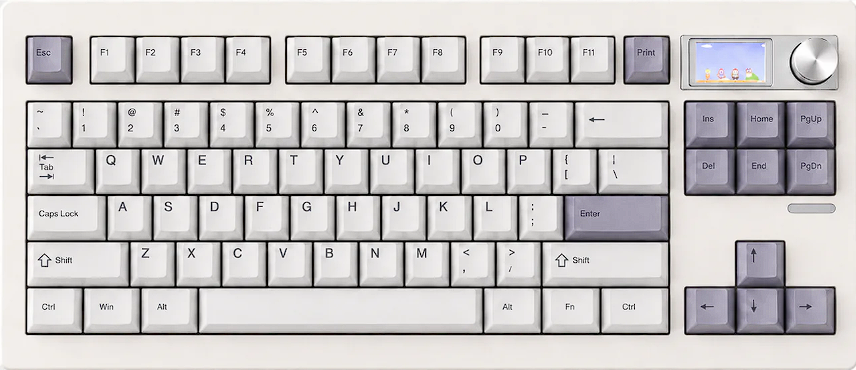
Your Small Keyboard does not have a full function-key row. Hold Fn with the number row to access F1–F12 and other shortcuts.
| Shortcut | Windows Mode | Mac Mode |
|---|---|---|
Fn + 1 |
F1 | Screen brightness down |
Fn + 2 |
F2 | Screen brightness up |
Fn + 3 |
F3 | Task view |
Fn + 4 |
F4 | Control Pad |
Fn + 5 |
F5 | Not assigned |
Fn + 6 |
F6 | Not assigned |
Fn + 7 |
F7 | Previous track |
Fn + 8 |
F8 | Play / pause |
Fn + 9 |
F9 | Next track |
Fn + 0 |
F10 | Mute |
Fn + - |
F11 | Volume down |
Fn + = |
F12 | Volume up |
Fn + P |
Pause | F15 |
Fn + O |
Scroll Lock | F14 |
Fn + I |
Print Screen | F13 |
Fn + Delete |
Insert | Not assigned |
Fn + Page Up |
Home | Home |
Fn + Page Down |
End | End |
Shift + Esc |
~ |
~ |
Fn + Windows |
Lock Windows key | Not assigned |
Hold Fn + Backspace for 3 seconds |
Reset keyboard | Reset keyboard |
Windows and Mac modes
Use the system switch on the keyboard to choose Windows Mode or Mac Mode.
When using Mac Mode:
-
Altworks as Option -
Windowsworks as Command - The function shortcuts follow the Mac column in the table above
Battery, charging and sleep mode
Charging 🔋
When the battery is low:
- The Fn key flashes red
- This means the battery is below around 3.5V
When charging:
- The charging light stays red
- It changes to green when fully charged
Sleep mode 💤
To save battery:
- After around 5 minutes without use, the RGB lighting turns off
- Press any key to wake the keyboard
- In Bluetooth mode, the keyboard enters deep sleep after around 30 minutes without use
- Press any key to wake and reconnect it
Optional GMK67 software
The GMK67 download page currently provides general keyboard software rather than a labelled VIA JSON file. Do not describe this keyboard as VIA-compatible until you have downloaded and tested the software with your own stock.
[Download GMK67 Keyboard Software]
Please then open Zuoya GMK67 and choose Software.
Troubleshooting 🔨
Bluetooth is not connecting
- Check that the keyboard is in Bluetooth Mode.
- Hold
Fn + Q,Fn + WorFn + Efor 3–5 seconds. - Wait for the indicator light to flash.
- Remove BT Keyboard from your device’s saved Bluetooth list.
- Try pairing again.
2.4 GHz receiver is not connecting
- Check that the keyboard is in 2.4 GHz Mode.
- Hold
Fn + R. - Wait for the white light to flash.
- Plug in the receiver.
- Wait for the indicator to become steady white.
RGB lighting is off
- Press
Fn + \|to change the lighting mode. - Increase brightness with
Fn + ↑. - Reset the keyboard by holding
Fn + Backspacefor 3 seconds.
Keyboard is not charging
- Try a different USB cable.
- Try a different USB port.
- Check whether the charging light turns red.
- Leave the keyboard connected for at least 30 minutes before trying again.
🤔Stuck or need help?
Don’t worry - our team’s got your back: 😁
Join our Discord for real-time help: https://discord.gg/GrcrexEXgB
Or shoot us an email: support@shopgalactica.com

Leave a comment
All comments are moderated before being published.
This site is protected by hCaptcha and the hCaptcha Privacy Policy and Terms of Service apply.