

This walkthrough uses the Epomaker Image Custom Tool, which supports keyboards like the GMK87 and other Epomaker models with LCD screens.
What Is a Mechanical Keyboard Screen?
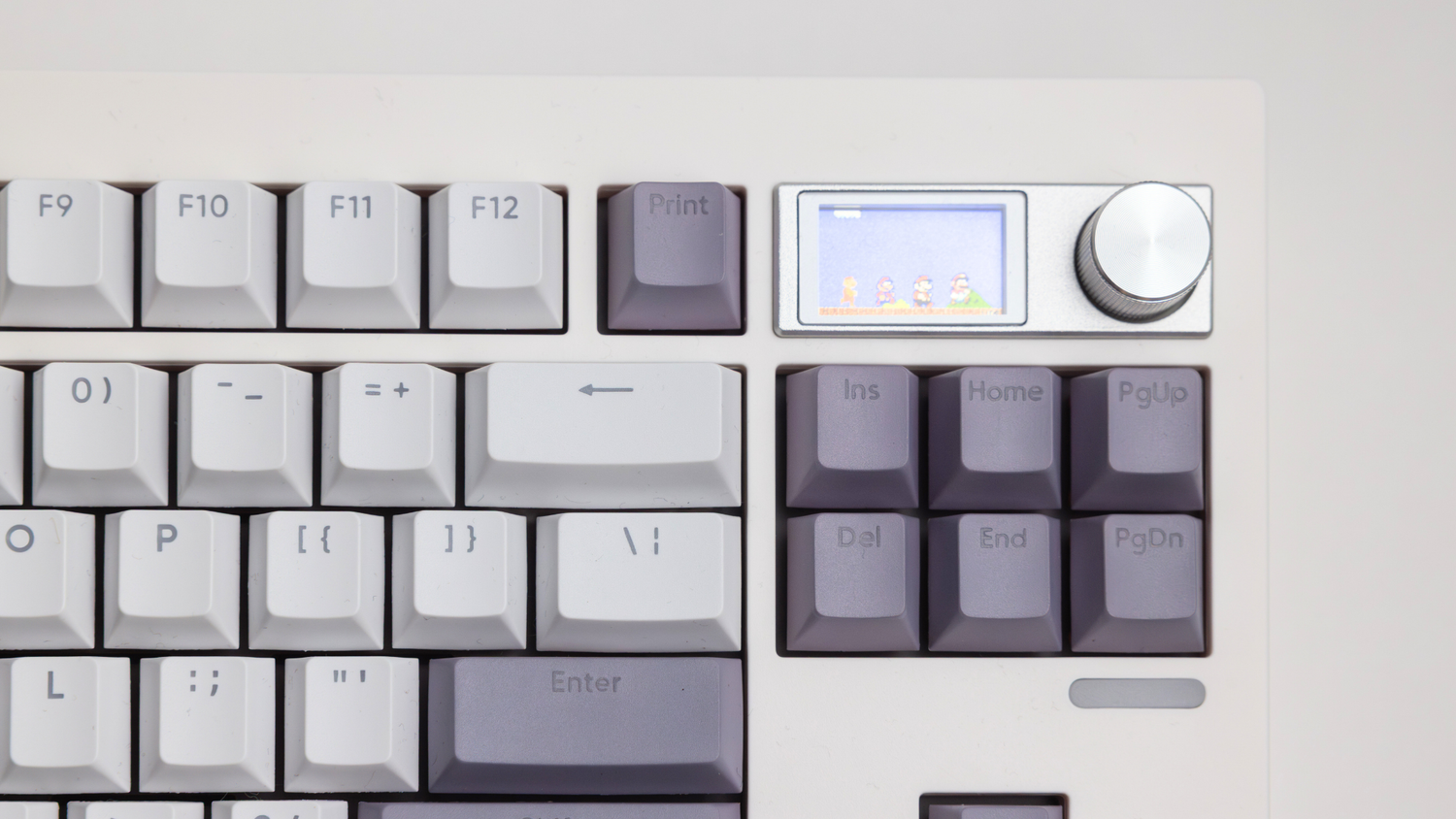
A mechanical keyboard screen (often called an LCD or OLED display) is a small panel built into certain keyboards, usually in the top corner of the case.
Depending on the keyboard, it can show:
- Custom GIFs or animations
- Static images or logos
- Battery level or connection mode
- Time or system info
These screens are mainly aesthetic, but they add motion, character, and a premium feel to your setup.
Popular brands that offer keyboards with screens include Epomaker, Keychron, and Akko.
What You’ll Need Before You Start
Before customising your keyboard display, make sure you have:
- A mechanical keyboard with a built-in screen (for example, the GMK87)
- A Windows PC
- A USB cable (wired mode recommended)
- A custom GIF or image
- The correct software for your keyboard brand
⚠️ Important: Most keyboard screen tools currently only work on Windows.
Step 1: Download the Image Custom Tool
Visit Epomaker’s official software page and download the Image Custom Tool.
- Install the software
- Follow the setup prompts
- Installation takes around 1–2 minutes
This tool allows you to upload custom keyboard GIFs and images directly to the screen.

Step 2: Choose Your GIF
Now for the fun part.
We recommend using Giphy to find animations that work well on small displays.
Tips for best results:
- Keep the file under 1MB
- Simple loops look cleaner
- Avoid tiny text or fast flashing
- Square or near-square GIFs work best
Download your GIF and save it somewhere easy to find, like your Downloads folder.

Step 3: Connect Your Keyboard
- Plug your keyboard into your PC using USB
- Avoid Bluetooth or wireless mode during setup
- Make sure the keyboard is powered on
Then open the Epomaker Image Custom Tool.
Step 4: Upload the GIF to Your Keyboard Display
Inside the software:
- Click “Animation” at the bottom
- Navigate to your saved GIF
- Select the file
You’ll see a preview of the animation inside the tool.
Step 5: Upload and Apply
- Click Upload on the right-hand side
- Wait for the progress bar to finish
- Do not unplug your keyboard during this process
Once complete, your keyboard screen will update instantly.
Step 6: Enjoy Your Custom Keyboard Screen ✨
That’s it — your custom keyboard display is live.
Anime loop, pixel art, logo animation, or minimalist icon — your setup now has movement and personality.
How to Change Keyboard Screens on Other Brands
Not all keyboards use the same software. Here’s how screen customisation works across other popular brands.
Keychron Keyboards
- Uses Keychron Launcher or VIA-based tools
- OLED screens usually support text and icons
- Full GIF support is limited on most models
Akko Keyboards
- Uses Akko Cloud Driver
- Some models support static images
- Animation support varies by keyboard
VIA-Compatible Keyboards
- Often use small OLED displays
- Customisation handled via VIA
- Best for minimalist or data-based displays
📝 Always check your keyboard’s product page to confirm screen capabilities.
Common Keyboard Screen Problems (And Fixes)
Screen not updating?
- Reconnect the USB cable
- Restart the software
- Run the program as administrator
GIF upload fails?
- Reduce file size
- Use a simpler animation
- Close other keyboard software
Nothing happens after upload?
- Make sure the keyboard supports animations
- Try wired mode only
Final Thoughts
Customising your mechanical keyboard screen is one of the easiest ways to add personality to your desk setup. Whether you’re into cosy minimalism, anime aesthetics, or cyberpunk vibes, a custom keyboard GIF brings your board to life.
🤔 Stuck or Need Help?
Don’t worry - our team’s got your back:
Join our Discord for real-time help: https://discord.gg/GrcrexEXgB
Or shoot us an email: support@shopgalactica.com

Thanks for making it this far! If you found this guide helpful, share it with your fellow keyboard lovers. Let's bring some life to those screens, one GIF at a time 🎉


Leave a comment
All comments are moderated before being published.
This site is protected by hCaptcha and the hCaptcha Privacy Policy and Terms of Service apply.